
Publsy guide · AI connection
From a monthly plan to client approval, with your own AI assistant
Planned the month with your own AI assistant? Bring the briefs and selected creatives into the right Publsy client account. You can manage copy revisions from the same conversation, while the client makes the decision on the Publsy review page.
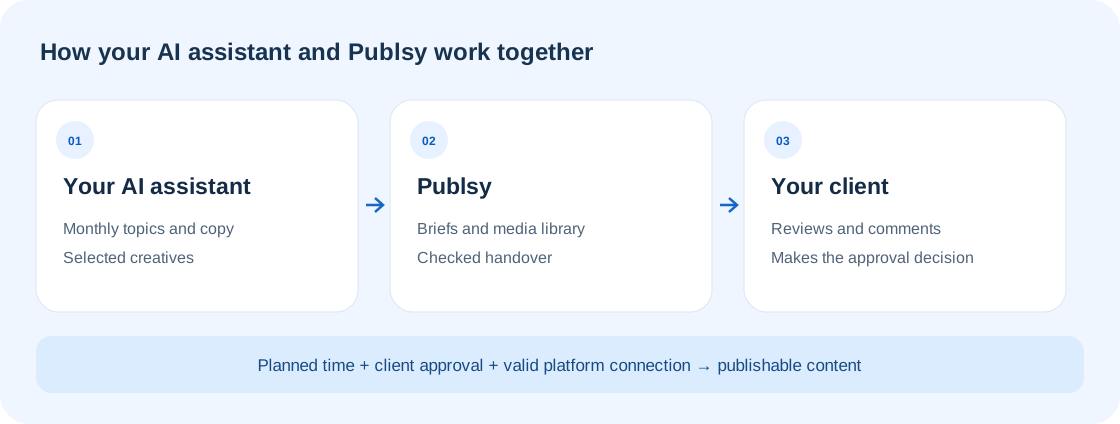
- Your assistant
Plans the month and prepares copy.
- Publsy
Stores the briefs, creatives and review round.
- Your client
Reviews and approves each version.
The client keeps the decision
Imported content is a brief. After submission it is Pending review. A planned date can become a publication time only after client approval. The MCP connection cannot approve or publish directly.
1. Prepare the client in Publsy
Sign in to your agency account and open the client you are working for. Check the company name, connected Facebook or Instagram profile, and the approval notification address on the client’s Edit page.
You can create internal briefs without a social connection. Actual publication later needs a working destination profile and suitable media. The assistant can access only clients that you explicitly authorize for the connection.
- You know which client and month you are working on.
- The approval contact address is configured.
- There is time for feedback before the planned publication.
2. Connect your AI client
The connection URL is https://publsy.com/mcp. You sign in with your Publsy account; you do not need to paste its password into a conversation. Choose the setup path for the client you use.
Review the Publsy consent screen during the first sign-in. Monthly imports, brief edits and approval emails each have a separate permission. An older connection must be authorized again to use these new actions.
ChatGPTOAuth · custom MCP connection
On the Plugins page, use + to add a custom MCP server. Name: Publsy; URL: https://publsy.com/mcp; authentication: OAuth. Review the warnings and create the connection, then sign in to Publsy, choose the clients and check the permissions. Select the Publsy connection in a new conversation. Availability depends on your account and workspace policies.
Official ChatGPT setup ↗CodexStreamable HTTP · OAuth
In your client’s MCP settings, add a Streamable HTTP server named Publsy using the URL above, then start authentication. The two commands below are an alternative for command-line setup. Check the clients and new actions on the consent page.
codex mcp add publsy --url https://publsy.com/mcp
codex mcp login publsyClaude DesktopLocal MCP bridge · separate setup
Publsy’s local MCP bridge can be configured for Claude Desktop with developer assistance and separate Publsy access. Ask for help with that setup. This guide does not present Claude’s web OAuth connection as a completed, verified setup path; the first trial in your own Claude account is a separate step.
Official Claude Desktop information ↗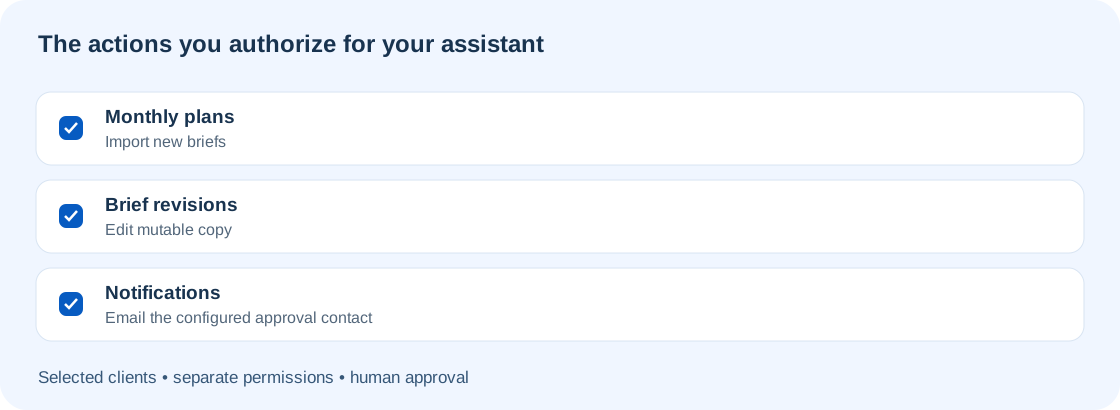
Check the result
Ask: “Which Publsy workspace are you connected to, and which clients can you access?” The answer should show your workspace and selected clients.
3. Plan the month, then import it as briefs
Planning and saving to Publsy are separate actions. First review the monthly topics, copy and dates in the conversation. When they are ready, ask the assistant to import the plan for the selected client.
An import can contain 1–62 briefs. Each can include copy, internal instructions, a content type, destination profiles and a planned date. An image description is not an image file: upload and attach the creative in the next step.
An import creates a new plan and does not overwrite existing months or posts. To revise existing work, name that plan and post instead of asking for a new import.
Ask your assistant
Prepare an 8-post monthly plan for “[Client name]” for November 2026. First show me the topics, captions, visual briefs and planned dates in Europe/Budapest time. After I accept the plan, import it into Publsy as new internal briefs. Do not send email or request client approval yet.
Check the result
The new plan appears under the correct client in Publsy. Check the number of briefs and returned post links. Their status is still Brief.
4. Upload and attach the creatives
Give the assistant the image you created in your AI client or explicitly selected, and tell it which client and brief it belongs to. ChatGPT can hand over the selected file; the local bridge uses an allowed creative folder. Test the file handover in your particular client the first time.
Wait for processing and security checks to finish. Then ask the assistant to attach the clean library asset to its own brief or draft. Use the Publsy interface to replace an approved image or an image returned for changes; MCP does not delete or replace existing attachments.
MCP hands over ready-made files and briefs. Importing a visual brief does not automatically start image generation in Publsy. Your AI client subscription or API usage and Publsy’s own AI allowance are separate.
Ask your assistant
Upload the image I have just selected to “[Client name]” in Publsy. Wait for successful security checks, then attach it to my “[monthly plan / post topic]” brief. Read the post back and give me its Publsy link. Do not submit it for review yet.
Check the result
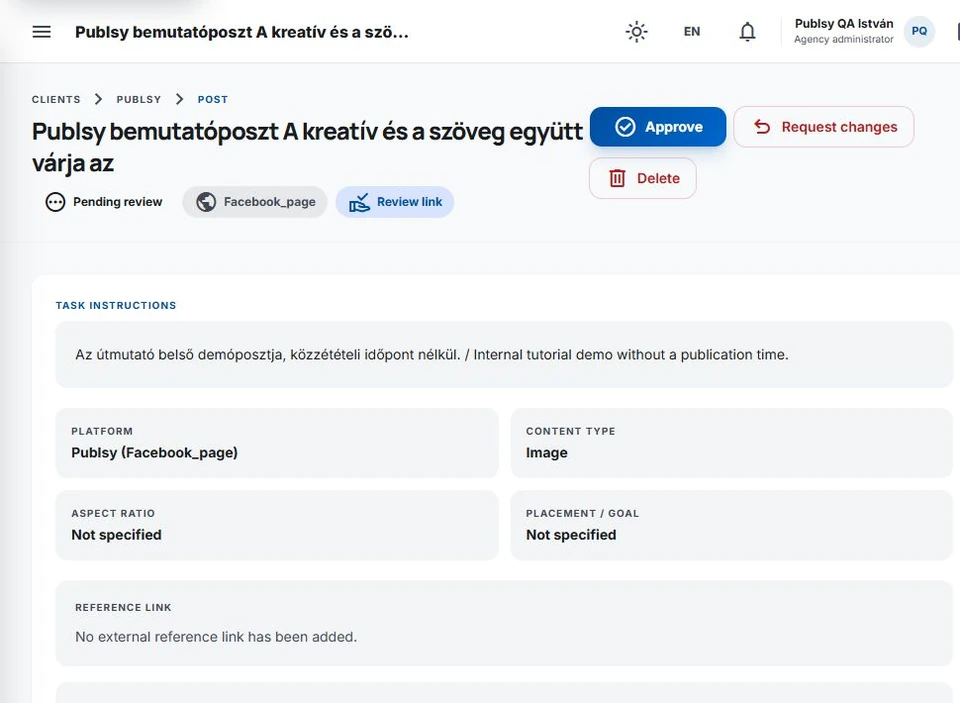
The library upload is ready, the selected file appears on the correct post, and the creative matches the caption.
5. Revise the existing brief
When only the copy needs changing, ask for a revision to the existing post. Identify it and describe the change precisely. The assistant reads the current version before updating the requested fields.
Content in Brief, Draft or Changes requested state is editable. MCP cannot rewrite content that is pending review, approved, scheduled or published. If someone else changed the brief in the meantime, it must be read again and the revision reconciled.
Ask your assistant
Open the existing “[post topic / Publsy link]” brief. Shorten the first sentence and change the closing reference from the autumn offer to the November offer. Keep the image, profiles, other instructions and planned time. Read back the revised caption.
Check the result
The same post has changed. No second plan or duplicate post was created, and its previous version remains in the history.
6. Request client approval for the finished work
Review the finished copy, creatives and destination profiles. Name the plan and the exact posts to hand over. Explicitly authorize the notification email too; Publsy uses the approval address already stored for that client.
The selected posts are submitted together. An outdated version, unprocessed media or a missing contact stops the whole request and queues no email. You can correct the problem without accidentally submitting just part of the batch.
The message can use the configured agency name, logo and colour. The monthly link may also show other posts already submitted in that plan. A queued message is not proof of delivery or client approval.
Ask your assistant
Submit the [selected posts] I have checked in “[monthly plan name]” for client approval. I authorize Publsy to send an English notification to the approval address already configured for this client. Do not approve or publish anything. Tell me how many posts are Pending review and whether the notification was queued.
Check the result
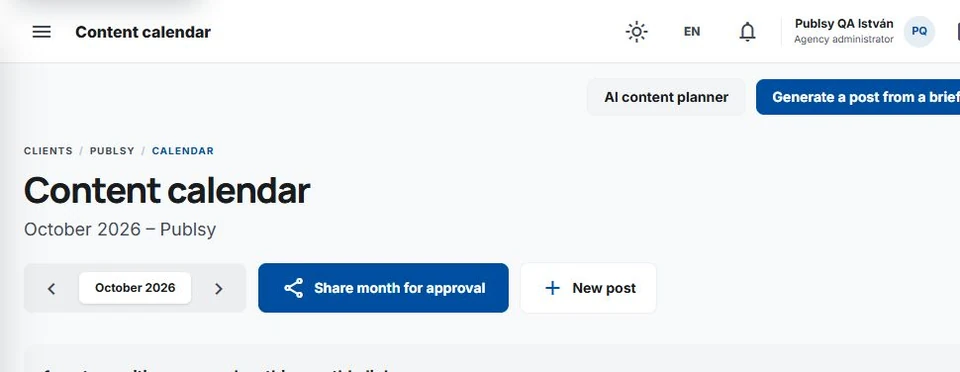
The selected posts are Pending review and the notification is queued. The client can decide separately on each post.
7. The client approves or requests changes
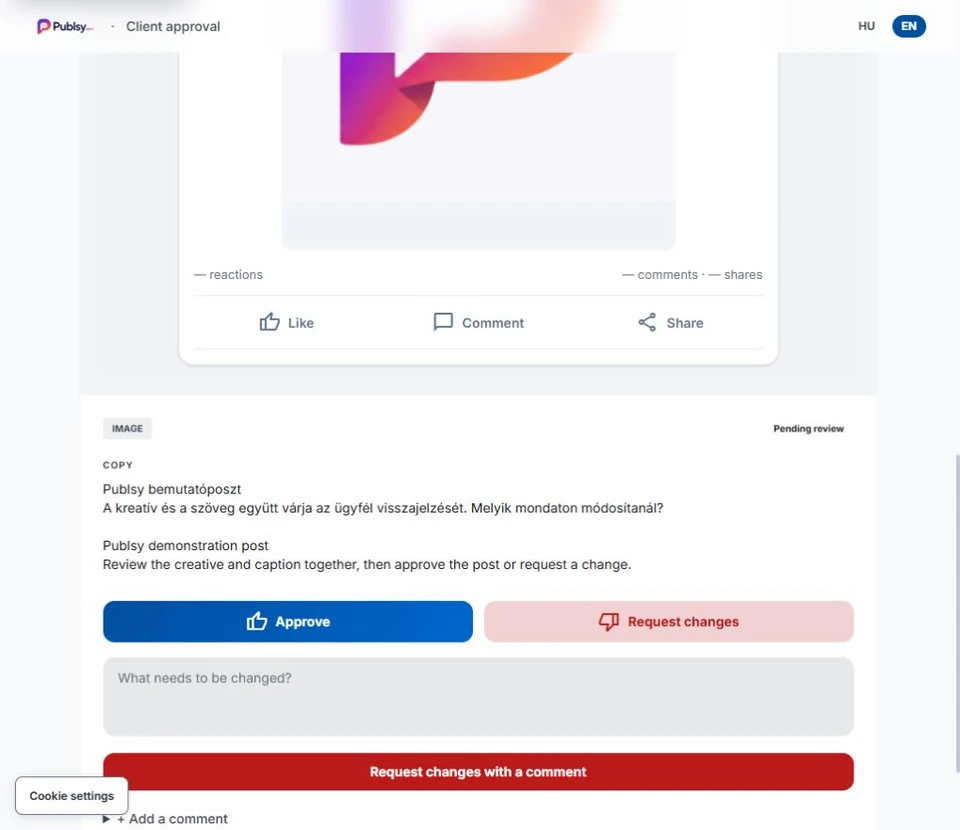
The email link lets the client inspect the copy and creative together. Approve accepts the post; Request changes lets them send feedback and a revision request. Opening the email or leaving a separate comment is not approval.
After a change request, the assistant can read the client feedback and revise editable copy. Submit the corrected work for another review. The previous decision does not approve the next version.
After approval, the planned time, connected profile and media requirements determine publication. Without a planned time, the post remains approved. If the date is already past, agree a new one before approval. For multiple destination profiles, check the actual result separately on each platform.
Ask your assistant
Read the client feedback and current state of “[post topic]”. If its state is Changes requested, revise the copy according to the feedback and show me the result. Do not send another email yet; I will decide when to resubmit.
Check the result
Only a client-approved version can move forward. The assistant does not make the decision on the client’s behalf.
What each state means
- Brief / Draft
- Internal work. Editable and not yet handed over to the client.
- Pending review
- The submitted version is waiting for the client’s decision. MCP cannot rewrite it.
- Changes requested
- Returned copy can be revised, then needs a new submission.
- Approved / Scheduled
- The accepted version is waiting for the other publication requirements or its planned time.
- Published
- Check the actual publication result on every destination platform.
Before your first monthly handover
- I am connected to the correct client and month.
- Only the necessary clients and actions are authorized.
- I have read back the briefs and selected creatives.
- Media checks have finished.
- The approval address, email language and planned dates are correct.
- The import, email and date do not replace the client’s decision.
When something needs attention
I cannot see the client.
Check the workspace and the connection’s allowed clients. Access is the intersection of those clients and your current user permissions. New clients need separate authorization.
A new action or permission is missing.
Refresh the client’s tool list, then authorize the connection again with the required actions. Existing credentials did not automatically gain monthly imports, edits or email permission.
I do not know whether an import or submission succeeded.
Read the plan and post states first. An unchanged retry must keep the same operation ID; a new ID may create another import. Do not recreate the whole month because a response was lost.
The approval contact is missing or media is not ready.
Correct the client contact address, or wait for or repair media processing. Check the posts again before submitting.
Why did a post with a planned date not go live?
A date does not replace client approval. Check its state, social connection and platform-specific errors. Pending review or Changes requested is not publishable.
Technical setup details
- MCP URL: https://publsy.com/mcp. The remote server offers 14 tools; the local bridge adds local file upload.
- New actions: publsy_import_monthly_plan, publsy_get_plan, publsy_update_brief, publsy_request_review. New scopes: plans:write, briefs:write, reviews:write. The relevant read and media scopes are also required for the complete workflow.
- Every write needs a stable request_id UUID. Editing needs a current edit_fingerprint; submission needs a current edit_fingerprint and review_version. The assistant obtains these from a fresh read.
- Dates use ISO 8601 with seconds and the correct UTC offset, such as 2026-11-02T18:00:00+01:00, with timezone Europe/Budapest. Dates must belong to the plan’s local month.
- A monthly import is limited to 62 briefs and a 1 MiB request. Captions allow 10,000 characters, internal instructions 5,000 and hashtags 500. Approval notifications allow at most three new requests per minute per client.
- Keep manual access keys in a secrets manager, out of conversations. Share a review link only with the relevant decision-makers.