
Practical guide
How to request client approval in Publsy
The caption and creative are ready. The next step is to make sure the client reviews the same version as the team. This guide walks through submitting a post, sharing a month of content and sending revisions back for review.
The workflow at a glance
Draft → Pending review → client decision. A change request is followed by revision and resubmission. An accepted post can only go live when the other publication requirements are also met.
1. Prepare the post under the correct client
Open the client, then create or open a post. Select the destination profiles, write the caption and attach the relevant image or video. Saving creates an internal draft, which the client cannot see on the review link.
Check the caption, creative and selected profiles together before submitting. Wait for uploaded files to finish processing and pass their security checks. If you set a publication time, agree it with the client and allow time for feedback.
- The correct client and destination profiles are selected.
- The caption and creative can be reviewed together.
- Upload processing and security checks are complete.
2. Submit the version that is ready to review
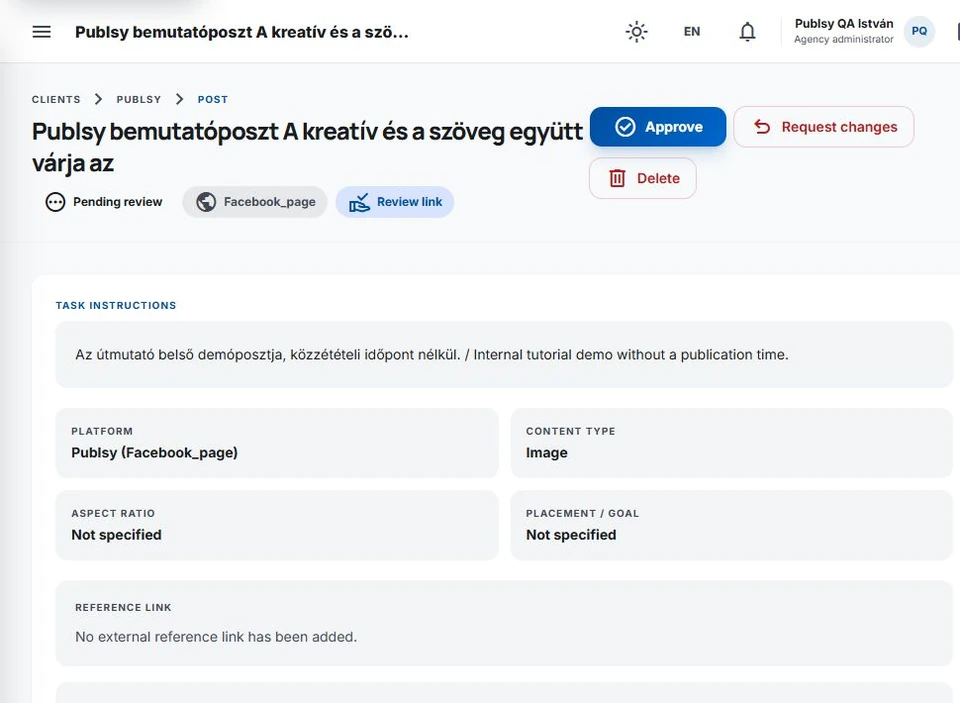
On the post page, choose “Send for review”. After a successful submission, the status changes to “Pending review” and a “Review link” appears. You are now handing over a version intended for the client, rather than an internal work in progress.
The agency page also has decision buttons. When you are waiting for the client’s feedback, send them the shared review page. Sending an email or opening a link does not approve the content.
3. Share the month and notify the client
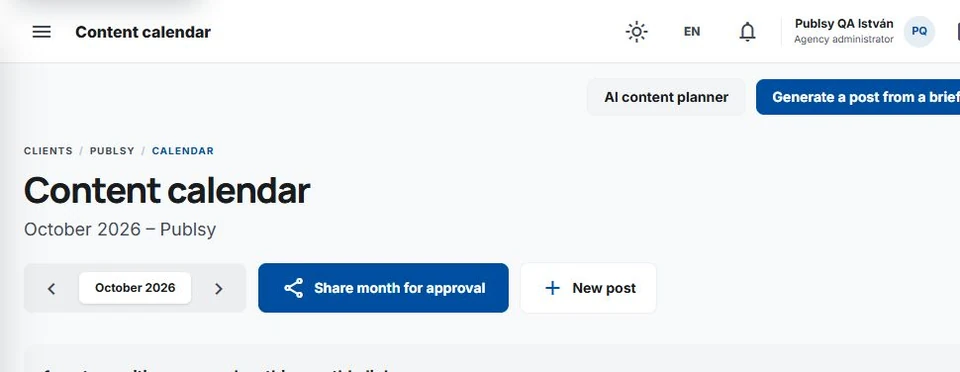
Open the same client’s Calendar and select the month. “Share month for approval” becomes available when there is a valid shared review round containing submitted posts. Several posts can appear on that one link; the client makes a separate decision on each.
Set the approval notification email address on the client’s Edit page. In the calendar’s notification section, check the recipient, select the email language and send the notification. The email includes a clickable review link. If an agency name, logo and colour are configured in branding, they can also appear in the message.
The review link grants access to the submitted content. Share it only with the relevant decision-makers, and keep it out of public posts and websites.
4. The client decides beside the content
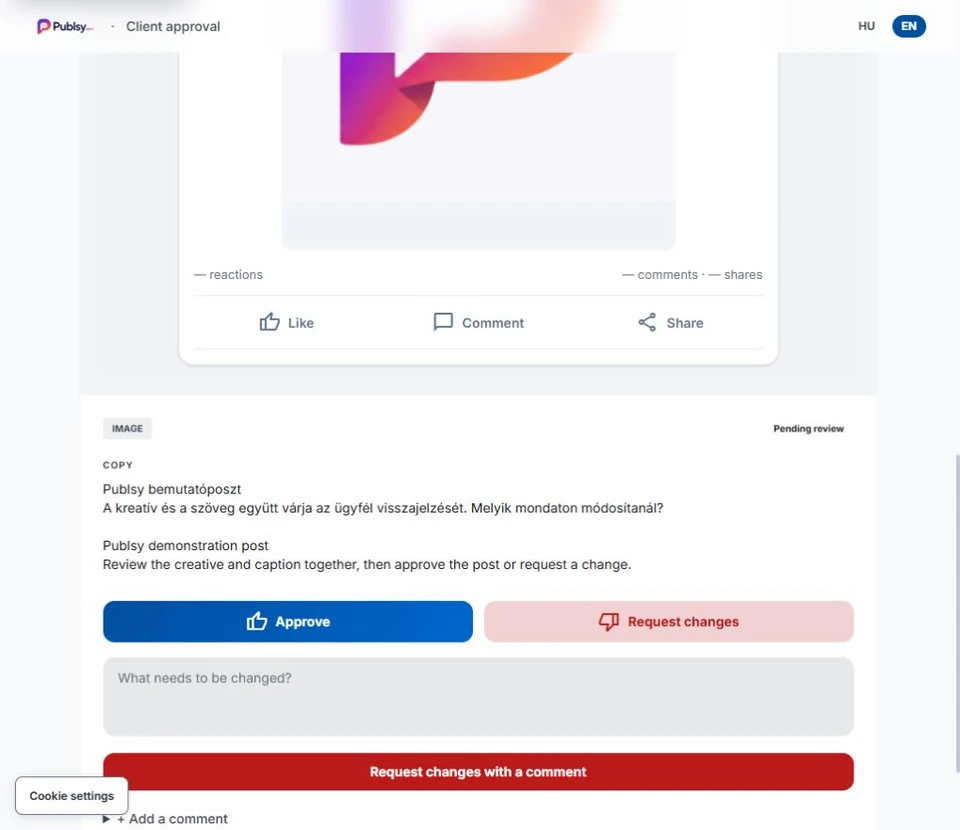
The recipient does not need to create a separate Publsy account to use the review link. They can select a post from the monthly overview and inspect its caption and creative together.
To accept the version, the client chooses “Approve”. To ask for a revision, “Request changes” opens the feedback field. They should describe the change clearly and submit the request. For example: “Please use the November offer in the second sentence.”
“Add a comment” leaves a separate comment. When a revision is required, the client should also use the change-request action so that the post status tells the team what to do next.
5. Apply the requested change and resubmit
After a revision request, the team can continue from “Changes requested”. Open the affected post, read its feedback, then revise the caption or replace the creative.
Save the changes and choose “Send for review” again. The revised post returns as an item awaiting review. The earlier decision does not replace a review of the new version. Other posts that have already been accepted can be handled separately.
6. Check the time and publication result after approval
An approved post with a publication time can move to Scheduled. Without a time, it remains Approved. Scheduling does not bypass the client’s decision: a calendar entry does not replace approval for a post that is still pending review or has been returned for changes.
If the planned date has passed, agree a new time before approval. Actual publication also needs a valid platform connection, suitable media and subscription access that allows publishing.
After publication, inspect the result for each destination on the post page. When targeting Facebook and Instagram together, check both results. Success on one platform does not establish success on the other.
Before you hand over
- The post contains the intended caption and creative.
- The status is Pending review and the post belongs to the correct review round.
- The recipient and email language are correct.
- Approval and scheduling have been agreed as separate steps.
When something needs attention
Why is there no shareable month?
Check the client and selected month. There must be a post submitted for approval and a valid shared review round. Drafts and completed items alone do not create a new approval task.
Why can’t I submit the attached media for review?
Uploads must finish processing and pass their security checks. Inspect the media status and the displayed error. A file with an unsupported format or a failed check needs to be corrected and uploaded again.
Why can’t the client see the revised post?
Editing and saving are followed by resubmission for review. Check that the status is Pending review again and that the client is using the valid link for the relevant month.
What should I do if the notification email does not arrive?
Check the recipient stored for the client, the sending confirmation in the interface and the spam folder. Avoid recreating posts because of an email problem. If it continues, send the client name and relevant month to info@optinext.hu; do not include passwords or the review link.